Handycheera: A Versatile Font with Hidden Potential
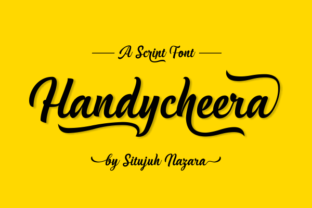
If you’ve come across Handycheera while searching for a decorative script font, you’ve likely noticed its ornate swashes, alternate characters, and the name of its designer, Situjuh Nazara. At first glance, it’s easy to assume this is just another pretty typeface meant for invitations or headlines. But there’s more to it than meets the eye—and overlooking a few key details can turn a promising design into a frustrating one.
Handycheera is PUA encoded, which means you can access its full set of glyphs without needing special software. That alone puts it ahead of many script fonts that require workarounds. However, many people still run into problems when choosing, downloading, or applying it. Let’s walk through the common missteps so you can use Handycheera with confidence, whether you’re a beginner or a seasoned designer.
Understanding What Handycheera Really Offers
Before diving into mistakes, it helps to know exactly what you’re getting. Handycheera is a script font with a handcrafted feel. It includes multiple swashes and stylistic alternates that let you customize letters. Because it’s PUA encoded, you can insert those alternates directly from the font panel in most applications—no glyph palette memorization required. That’s a huge time-saver.
Yet many people misunderstand this feature, assuming that all fonts with swashes work the same way. That’s where the trouble starts.
The PUA Encoding Confusion
One of the most common mistakes is thinking PUA encoding is a “nice to have” rather than a necessity. When you download a font that isn’t PUA encoded, you often can’t access alternates or swashes without typing character codes or using third-party tools. With Handycheera, those characters are mapped to standard keys or easily found in the character map. But if you don’t know how to activate them, you might miss out entirely.
What people do wrong: They buy the font, install it, type a word, and see only the default letters. They assume the swashes are broken or missing.
Better approach: Open the font panel in your design software (like Adobe Illustrator, Canva, or Affinity Designer) and look for “Stylistic Alternates” or “Swash” options. In many apps, you can also insert glyphs directly by selecting the character and picking an alternate from the dropdown. Bookmark a quick tutorial for your specific software—it will save you hours of confusion.
Mistakes in Application: When Swashes Work Against You
Handycheera is packed with decorative curls and flourishes. That’s its strength, but it’s also its biggest trap if you use it without considering context. A font like this is designed for short, impactful text—titles, logos, quotes, monograms. It is not intended for long paragraphs or body copy.
Yet I’ve seen people try to use Handycheera for an entire wedding invitation body, or worse, for a product description on a website. The result is nearly unreadable, especially at small sizes. The swashes collide, the alternates confuse the eye, and the message gets lost.
Legibility and Size Planning
When you use Handycheera, always test it at the intended output size. A swash that looks graceful at 72 points can become a tangled mess at 12 points. Similarly, if you’re printing on dark paper or using a low-resolution screen, fine details may disappear.
Practical advice: Create a simple test document. Type a few words in Handycheera at different sizes—10, 14, 24, 48, 72 points. See where the swashes become distracting. Then use that size as your minimum for any design. If you need body text, pair Handycheera with a clean sans-serif font like Open Sans or Lato for contrast. That way the script remains the hero without compromising readability.
Overlooking Software Compatibility
Even though Handycheera is PUA encoded, not every program handles glyph access the same way. Some older or simpler apps—like basic word processors—may not show alternates at all. This catches many beginners off guard. They buy the font for a project, load it into Word, and wonder why the swashes don’t appear.
What to check before you buy: Look up whether your primary design software supports OpenType features. Adobe products, Affinity, Canva Pro, and many modern graphic design tools do. Google Docs and Microsoft Word (web version) are hit-or-miss with advanced alternates. Also, some free font viewer tools can show you the full glyph set, so you can even preview alternates before installing.
If you work mostly in a less-advanced tool, don’t give up—use a secondary app to create your text with alternates, then paste it as a graphic. It’s an extra step, but it works.
Licensing and Usage Rights: A Quiet Pitfall
Font licensing is rarely exciting, but it’s where many promising projects derail. Handycheera is sold by Situjuh Nazara through various platforms, and the license terms vary by seller. Some licenses allow commercial use, others restrict to personal projects, and still others limit the number of users or installations.
Common oversight: Assuming “commercial license” on a marketplace means you can use the font in logos or merchandise without restriction. In reality, some font sellers require an extended license for branding assets. If you create a logo with Handycheera and later sell it to a client, you may need to purchase an additional license.
Better habit: Read the license details before downloading. Look for phrases like “number of end users,” “number of projects,” “embedding permissions,” and “merchandise use.” If in doubt, contact the font designer directly—most are responsive and happy to clarify.
When More Swashes Isn’t Better
Handycheera offers multiple alternates for many letters. It’s tempting to use the most ornate version every time, but that can make a word look unbalanced or confusing. For example, if you use a sweeping swash on the first letter and a simple alternate on the last, the visual weight shifts awkwardly.
Real example: Designing a monogram. You might be tempted to pick the swashiest “H” and the swashiest “C,” only to find they collide or create a messy silhouette. Instead, choose one or two letters to carry the flourish, and keep the rest relatively plain. This creates contrast and lets the eye rest.
Practical rule: Apply swashes sparingly—usually for the first or last letter. Use simpler alternates for the middle characters. The font includes plenty of non-swash alternates specifically for this purpose. Let the design breathe.
Overlooking Kerning and Spacing Adjustments
Script fonts like Handycheera often have built-in kerning, but it’s not always perfect, especially when you use alternates that the designer didn’t pair during creation. If you’re combining a swash alternate with a standard letter, you may need to manually adjust spacing.
I’ve seen designers leave default spacing, producing gaps or overlaps that undermine the font’s elegance. This is especially visible in larger sizes like posters or headlines.
What to do: After adding alternates, zoom in and check each letter pair. Nudge letters horizontally if needed. In most design software, you can adjust kerning by placing the cursor between two characters and using keyboard shortcuts. If you’re working with a long word, consider breaking it into two lines or using OpenType ligatures if available.
Choosing the Wrong Context
Handycheera has a charming, hand-drawn quality. It works beautifully for feminine or romantic themes—weddings, calligraphy, beauty brands, craft products. But it can feel out of place for corporate, technical, or industrial projects. Choosing a font because it looks “pretty” without considering the brand personality is a mismatch that cheapens the design.
Example: Using Handycheera for a law firm logo. The swashes suggest elegance, but the association with script calligraphy may conflict with the professional, serious tone expected. A better choice would be a refined serif or crisp sans-serif. Save Handycheera for creative industries, boutiques, or personal projects where the emotion fits.
Check before you commit: Print or mock up your design with the font. Ask three people who don’t know your project what feeling the font gives them. If the feedback aligns with your message, you’re good. If not, reconsider.
Neglecting Backup and Alternative Search
Sometimes a particular weight or style of Handycheera might not meet your needs—maybe you need a bolder version or a companion that includes more punctuation. Some users panic and force the font to work, settling for a subpar result. Others abandon the search entirely.
Smarter approach: Look for similar script fonts that offer complementary strengths. For instance, if you love the swashes but need better legibility for smaller sizes, consider a script like “Halimun” or “Rochester” that also has OpenType features. Keep Handycheera as your go-to for display purposes, and use another script for subheadings or short captions.
You can also check if the designer offers a family pack—sometimes Situjuh Nazara releases additional weights or companion fonts. Following their portfolio can save you time next time.
Final Checklist Before Using Handycheera
To avoid the headaches described above, run through this short checklist each time you start a project with Handycheera:
- Check your software: Does it support OpenType features and PUA glyphs? Confirm before purchasing.
- Test at multiple sizes: Ensure legibility and swash behavior at your intended output size.
- Review the license: Is it compatible with your usage (commercial, branding, merchandise) and number of users?
- Plan alternates: Decide before typing which letters will use swashes. Use simplicity for the rest.
- Adjust kerning: Manual tweaks often improve the final look, especially for custom combinations.
- Match the mood: Ensure the font’s personality fits your project’s tone and audience.
Handycheera is a wonderful addition to any designer’s toolkit when used with intention. Its swashes and alternates, paired with PUA encoding, give you a level of control that many script fonts lack. By sidestepping the common mistakes I’ve outlined, you’ll not only produce cleaner work, but you’ll also enjoy a smoother creative process. Take the time to understand the font before you type, and Handycheera will reward you with an elegant, professional result every time.